14 min read
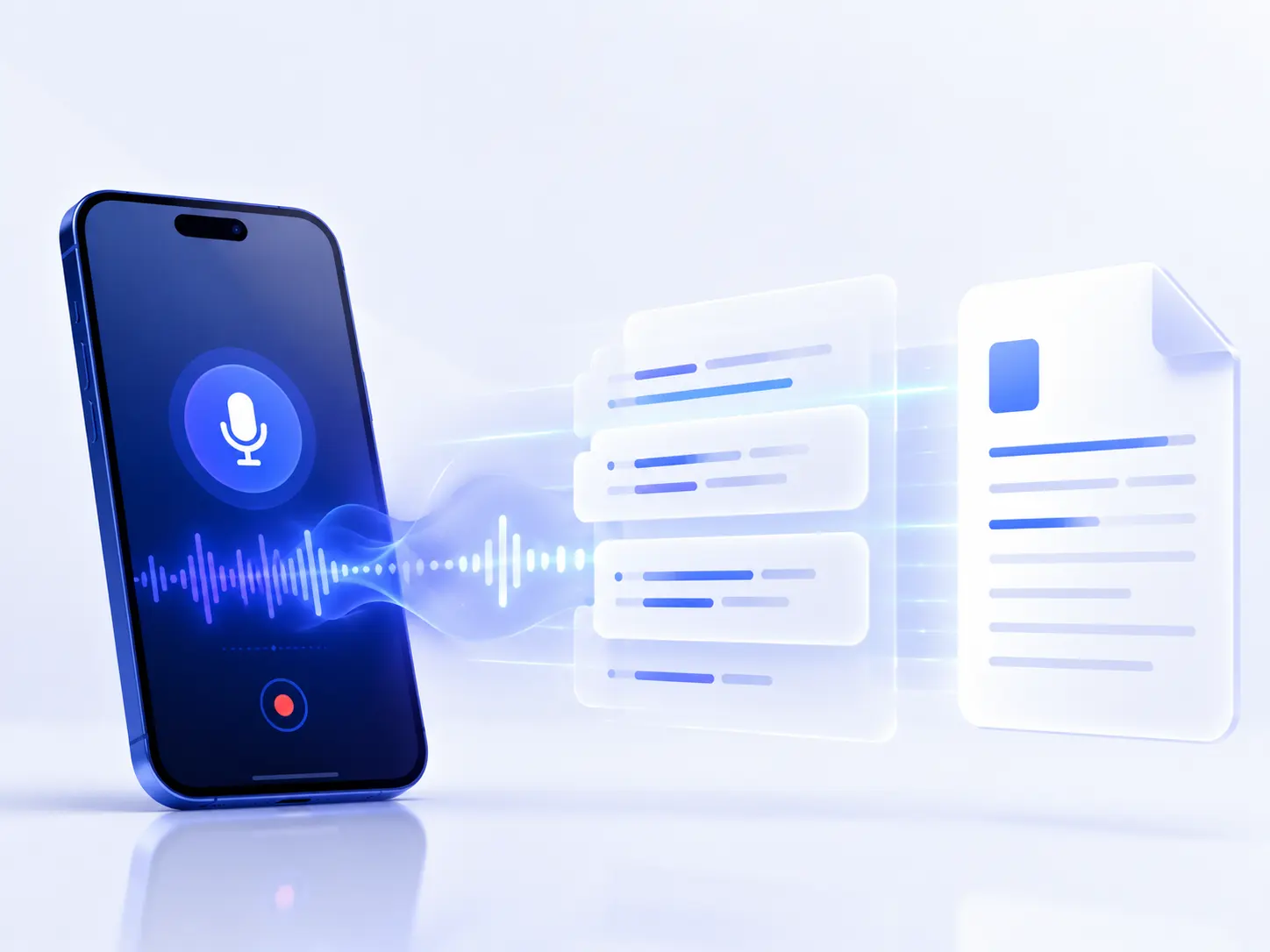
How to Improve Audio Transcription Accuracy
Diagnose why a transcript is wrong, improve the recording and source file, handle accents and specialist terms, and verify the details that matter.
Read the guide 123audio
The 123audio Blog
A practical knowledge hub for understanding how audio and video work. Explore foundational concepts, conversion methods and workflows, real-world use cases, tool comparisons, emerging research, and lessons learned from everyday production.
Explore the library
Clear explanations that connect technical details with practical decisions.
Diagnose why a transcript is wrong, improve the recording and source file, handle accents and specialist terms, and verify the details that matter.
Read the guide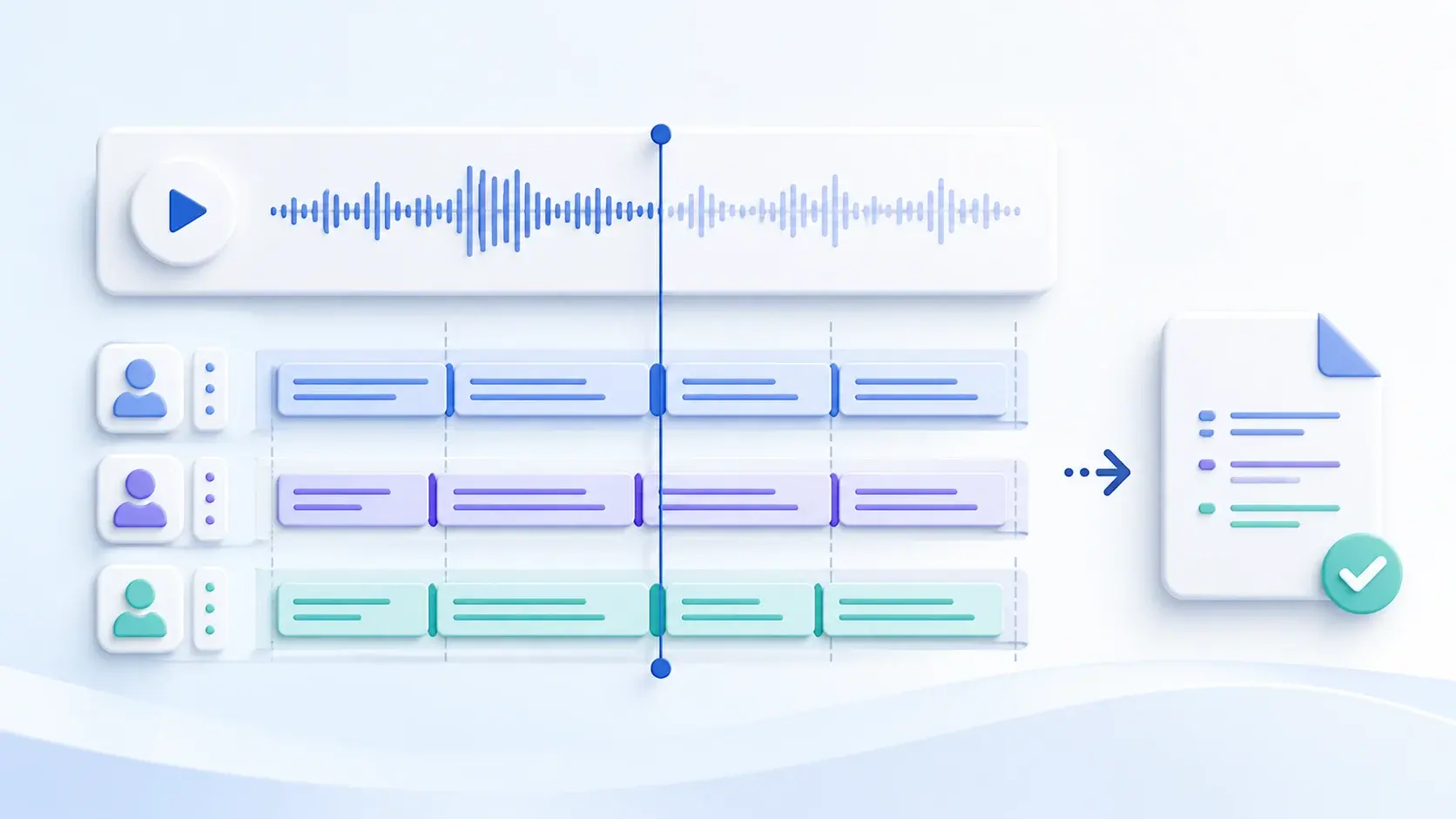
Generate a timed subtitle file, identify fixed offsets, gradual drift, and local mismatches, then repair and review every cue against the final media.
Read the guide
A practical workflow for journalists and researchers: prepare the recording, label speakers, verify names and quotes, and protect sensitive interviews.
Read the guide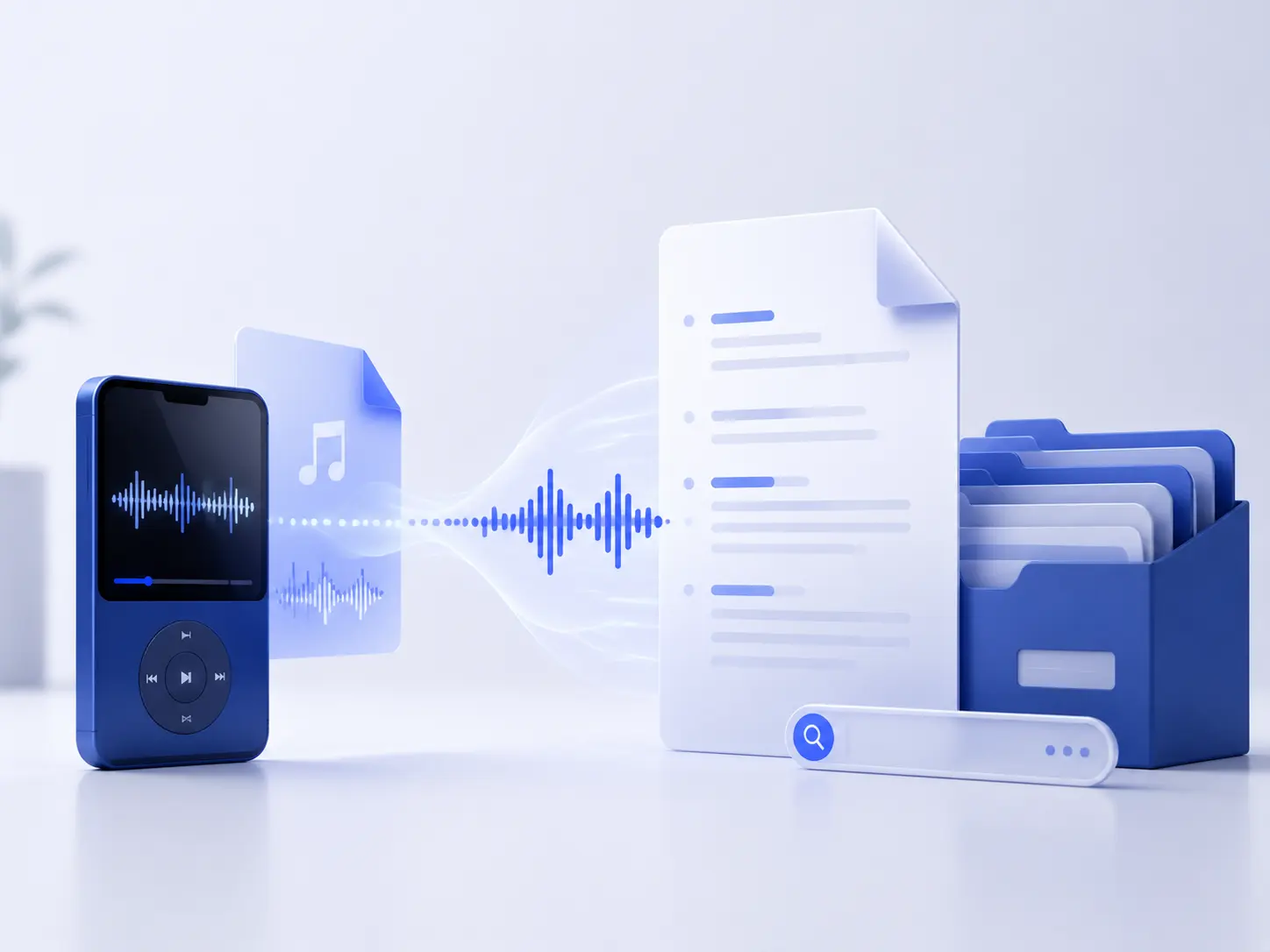
See what happens between an MP3 upload and a reliable transcript, compare local and hosted speech recognition, and build a pipeline that can scale.
Read the guide
Turn Bahasa Indonesia speech into clear English text or audio, check the details that matter, and choose the right output for your next step.
Read the guide
Turn an audio recording into useful text: prepare the file, create a first draft, review every important detail, and export the format you need.
Read the guide
Turn a video into a separate MP3, WAV, M4A, or FLAC file with the right method for your browser, phone, or video editor.
Read the guideWhat you will find here
Codecs, containers, bitrates, sampling, captions, and the concepts behind everyday media files.
Step-by-step workflows for extracting, converting, compressing, transcoding, and exporting audio or video.
Ideas for podcasts, meetings, courses, interviews, accessibility, content repurposing, and creative production.
Side-by-side analysis of desktop apps, browser tools, mobile workflows, and open-source options.
Readable notes on speech recognition, diarization, audio intelligence, codecs, and new media technology.
Troubleshooting notes, quality checks, workflow shortcuts, and lessons from real projects.
When you are ready to try it
The blog is independent of any single tool. When an article calls for a hands-on test, you can use 123audio to convert media, transcribe speech, or create captions, then compare the result with another workflow.
1. Identify the output
Decide whether you need text, captions, a compact listening copy, or an editing-ready master.
2. Keep the source
Work from the original recording and save a new export so you can retry with another format.
3. Review important details
Check names, numbers, speaker changes, timing, and rights before sharing the result.
Questions, answered
The blog covers audio and video fundamentals, conversion methods and workflows, practical use cases, tool comparisons, emerging research, and lessons from real production work. Articles explain how media files are structured, why quality changes during conversion, how creators can prepare recordings for transcription or captions, and which workflow fits a particular job.
No. The articles are independent educational resources rather than a product manual. They compare browser tools, desktop editors, mobile apps, command-line utilities, and open-source options. A 123audio link may appear when it gives readers a quick way to test a concept, but the explanation also covers alternatives, trade-offs, file compatibility, and situations where another tool is the better choice.
A container is the file package, such as MP4, MOV, MKV, WAV, or WebM, that can hold one or more media streams and metadata. A codec is the method used to encode and decode a stream, such as AAC, Opus, H.264, or VP9. People often use format as a shortcut for both ideas, but separating container from codec makes it easier to diagnose unsupported files, playback problems, and quality differences.
Start with the desired output, source quality, required compatibility, privacy needs, and whether you need editing control. A simple online converter is useful for a one-off MP3, WAV, or M4A export. A desktop editor is better when you need to select tracks, trim silence, normalize levels, preserve timecode, or batch process many files. A command-line workflow is valuable when the process must be repeatable or automated.
For editing, WAV is a common uncompressed handoff and FLAC is useful when you want lossless compression. MP3 is widely compatible and convenient for sharing, while M4A can provide efficient playback on phones and Apple devices. OGG or Opus can be efficient for web and application delivery. The best format depends on the destination; exporting a huge WAV does not improve detail that was already lost in a low-quality source.
First check whether the video already contains a suitable audio stream. If the workflow can copy that stream without re-encoding, it avoids an additional generation of quality loss. If you must encode, choose a lossless output such as WAV or FLAC for editing, or a sensible bitrate for MP3, AAC, or Opus when file size matters. Do not expect a higher bitrate to restore detail removed by an earlier lossy conversion.
Accuracy depends on recording quality, microphone distance, background noise, accents, language, specialist vocabulary, and overlapping speakers. A reliable process keeps the original file, creates a first draft, then reviews names, numbers, dates, jargon, speaker labels, punctuation, and unclear passages against the audio. Speaker diarization can help separate voices, but it still needs human checking when the record is important.
A transcript is a written record of spoken content and does not need timing. Subtitles usually represent dialogue for viewers who may not understand the spoken language. Captions are synchronized with playback and can include speaker identification and meaningful sound information such as applause, alarms, or music cues. A transcript can be the source for an SRT or WebVTT caption file, but timing and readability still require a separate review.
Use the cleanest original recording available, avoid repeated compression, and check that speech is audible without clipping. Remove long accidental silence only when it will not change context, and keep a copy of the unedited source. For interviews and meetings, note speaker names and technical terms in advance. These small preparation steps help automatic speech recognition, translation, summarization, and keyword extraction produce a more useful first result.
An online converter is convenient when you need a quick result, have a small number of files, and do not need detailed timeline control. Desktop software is preferable for confidential material, long recordings, batch jobs, advanced mixing, multi-track selection, or repeatable production. Compare upload limits, processing time, export options, metadata handling, and privacy policies instead of choosing a tool only because it has the most buttons.
Common use cases include podcast editing, lecture and meeting notes, interview research, accessible captions, language learning, social video repurposing, music and sound-effect preparation, archive cleanup, and extracting a soundtrack from a camera recording. Each use case has different priorities: a searchable transcript values clarity, a social clip values speed and size, and an archive values source preservation and metadata.
Test the same source file with the same target output and record the settings used. Compare accuracy, processing speed, export formats, bitrate or resolution controls, speaker handling, caption timing, batch support, privacy, pricing, and how easy it is to correct mistakes. A tool that wins a short clean voice memo may perform differently on overlapping speech, noisy field recordings, screen captures, or high-resolution video.
Yes. Research and technology articles translate developments such as speech recognition, speaker diarization, audio intelligence, neural codecs, spatial audio, media processing, and multimodal models into practical explanations. They distinguish established capabilities from early experiments, explain meaningful limitations, and link to primary or authoritative sources when a claim depends on a specification, benchmark, or research paper.
The experience notes cover unsupported codecs, missing audio tracks, out-of-sync exports, large files, clipped recordings, noisy speech, incorrect speaker labels, caption lines that are too long, and quality loss after repeated conversion. The goal is to identify the cause before changing settings: inspect the source, confirm the container and codec, test a short sample, and preserve the original before trying a new export.
Review a workflow whenever the source type, destination platform, or quality requirement changes. Browser and mobile apps update frequently, codecs and caption specifications evolve, and AI transcription models can improve or change their limits. Keep a short test file and a written checklist for important projects so you can verify output quality, timing, metadata, privacy, and compatibility after a tool update.