Private Online Audio Conversion
For standard files, this online audio converter works inside your browser. Your source file, temporary data, and converted download remain on your device throughout the process.
 123audio
Convert audio files to MP3, WAV, M4A, FLAC, or OGG. Choose your format and quality, then download the result—no account required.
MP3, WAV, M4A, AAC, FLAC, OGG, OPUS, AIFF, WMA, and AMR files up to 200 MB.
Local conversion: supported files stay in this browser tab while FFmpeg processes them. The finished download is created on your device; no sign-in or credits are required.
For standard files, this online audio converter works inside your browser. Your source file, temporary data, and converted download remain on your device throughout the process.
The current browser converter accepts supported audio files up to 200 MB. Larger files are not uploaded or processed by this page.
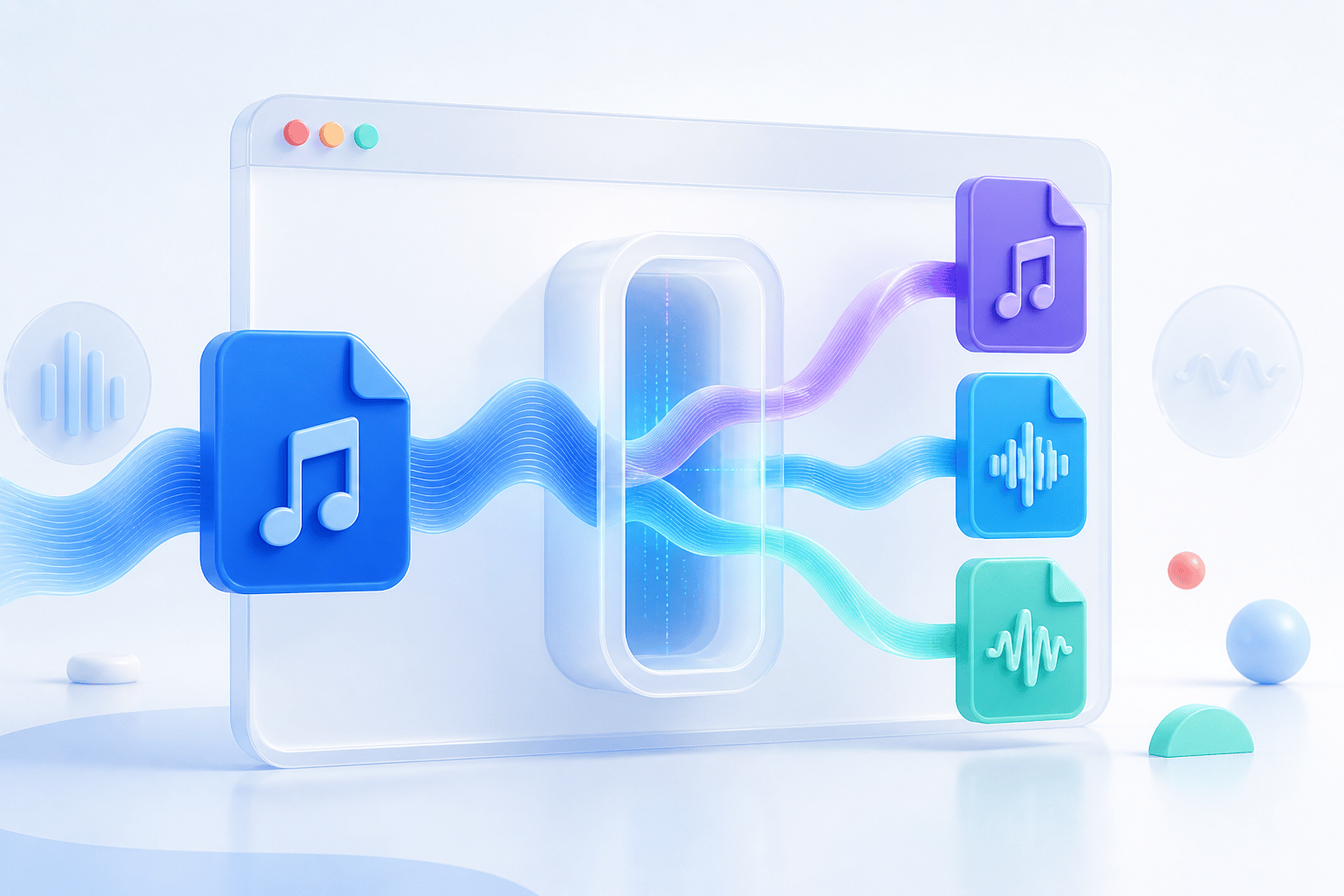
An online audio converter decodes sound from one file and encodes it in another audio format. It can change the container, codec, bitrate, or a combination of these settings while preserving the original source file.
This online audio file converter is useful when a recording, song, or podcast is not compatible with your next app or device. You can create a smaller file for sharing or prepare lossless audio for editing. If your source is a video, use the video to audio converter. If you need written speech, use the audio transcription tool instead.
Key takeaway
Format conversion changes how sound is stored and delivered. It does not add detail that the source recording never captured or that earlier lossy compression removed.
Use this online audio file converter in three simple steps. The encoding engine loads when conversion begins, helping the page stay responsive before you select a file.
Select a supported audio file from your device, or drag it into the converter. The source is prepared directly in the browser.
Choose a supported output format and, when available, set the bitrate that fits your preferred balance of sound quality and file size.
Start the conversion, wait for the new audio file to be prepared, and download it to your device before closing the page.
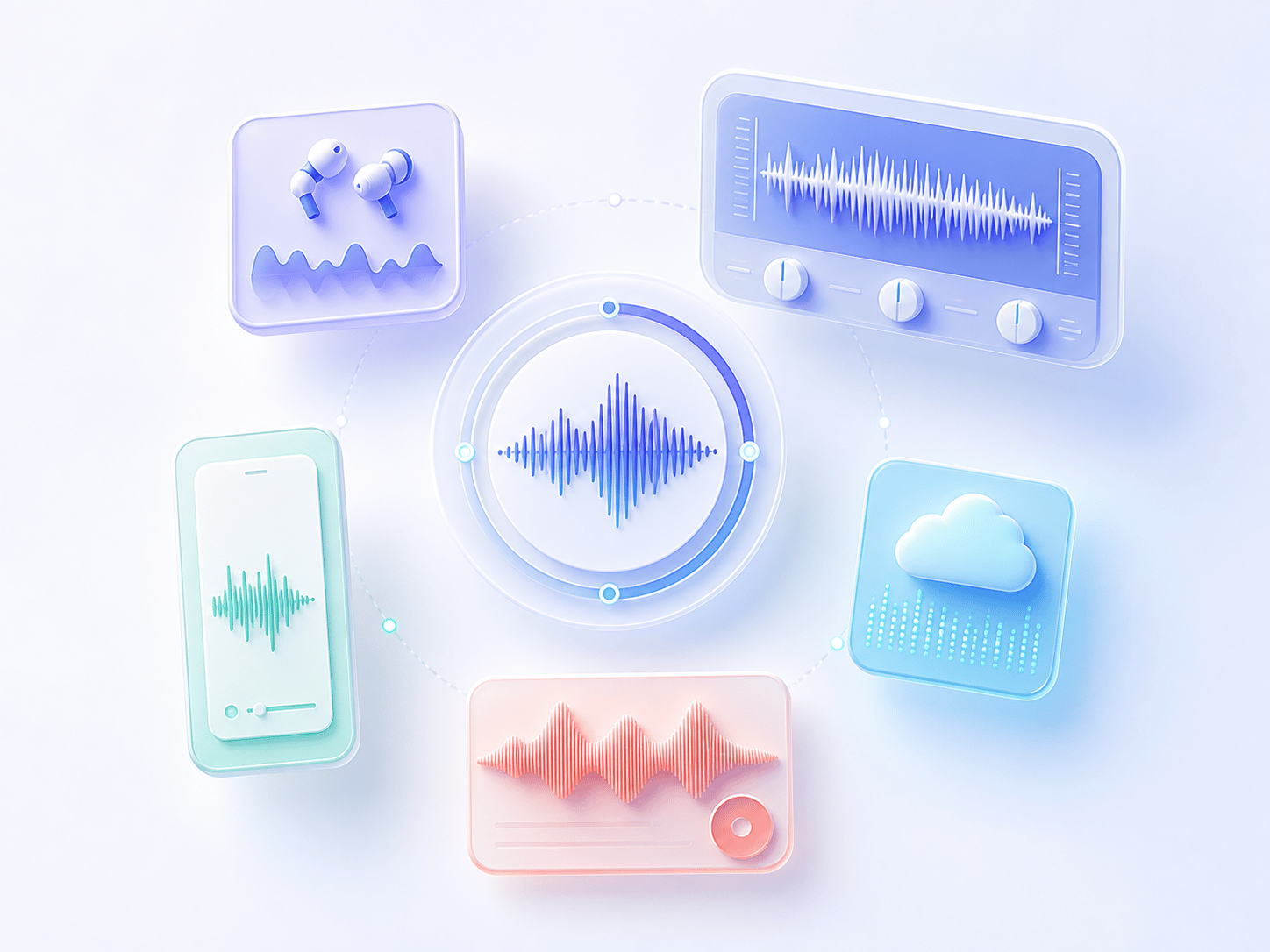
Choose an output based on where the converted file will be played, edited, stored, or shared. MP3 offers broad compatibility, M4A provides efficient mobile audio, WAV suits uncompressed editing, FLAC supports lossless storage, and OGG works well in compatible open-format workflows.
A file extension is only part of the story. The MDN Web Docs audio codec guide explains that codecs perform compression and decompression, while containers determine how encoded media is packaged. The Library of Congress WAVE description identifies WAVE as a wrapper that can contain audio bitstreams such as Linear Pulse Code Modulation.
| Format | Compression | Best for | Why choose it |
|---|---|---|---|
| MP3 | Lossy | Everyday playback and sharing | Smaller files and broad compatibility |
| WAV | Usually uncompressed PCM | Editing and production handoffs | Preserves decoded samples without added lossy compression |
| M4A (AAC) | Lossy | Phones, tablets, and modern media libraries | Efficient quality at practical bitrates |
| FLAC | Lossless | Music libraries and archival copies | Keeps decoded audio data while reducing size versus PCM WAV |
| OGG (Vorbis) | Lossy, open | Open web and software workflows | Flexible open-format delivery |
For lossy formats, a higher bitrate generally retains more encoded detail and creates a larger file. The ideal setting depends on the source and how the output will be used.
128 kbps
Useful when small downloads matter more than preserving subtle music detail.
192 kbps
A practical default for mixed speech, music, and general listening.
256 kbps
A larger output for music or material that may be played on better speakers.
320 kbps
Use when compatibility requires MP3 and file size is a secondary concern.
Important: converting a 128 kbps MP3 to 320 kbps does not recreate lost detail. It only encodes the already-decoded source at a higher target bitrate.
Our free online audio converter combines simple format controls with local processing. Supported files stay on your device while the browser creates the new audio download.
Supported files stay in the browser while the local conversion engine runs.
The converter creates a new output and does not overwrite your source.
Choose a file and start without registration or an email address.
Five clear formats cover everyday sharing, editing, web, and lossless storage.
Conversion changes how audio is encoded and stored. If you need editable words, captions, quotes, or meeting notes, create a transcript instead of changing the audio format.
Try voice to textChanging an MP3 into another audio format will not make its contents searchable. Create a timestamped transcript when you need to review topics, decisions, or spoken quotations.
Convert MP3 to transcriptFind answers about supported formats, audio quality, browser privacy, local processing, and file limits.
An online audio converter is a browser-based tool that changes the format or encoding of an audio file. With 123audio, you select a source file, choose a supported output and quality setting, then download the converted copy.
Yes. This free online audio converter can be used without registration or an email address. It processes one source file at a time and provides MP3, WAV, M4A, FLAC, and OGG output options.
No. Supported files are processed locally in your browser and remain on your device. The current converter does not offer a server fallback for files larger than 200 MB or sources the browser engine cannot decode.
Choose MP3 for broad everyday compatibility, M4A for efficient AAC audio in many mobile workflows, WAV for uncompressed editing, FLAC for lossless storage with smaller files than WAV, or OGG for an open web-oriented format. The right choice depends on playback support, editing needs, and desired file size.
No. An audio converter can change the format, codec, or bitrate, but it cannot restore detail already removed from a compressed source. Converting a low-bitrate MP3 to WAV creates a larger file without recreating the missing sound. For the best result, begin with the highest-quality source available.
No. This page changes one audio format into another. Use the dedicated 123audio Video to Audio Converter when your source is an MP4, MOV, WebM, MKV, AVI, M4V, MPEG, or MPG video.
Select an audio file, choose your output format and quality, and download the converted result in minutes.
Convert an Audio File