Repurpose recorded shows
Pull the finished soundtrack from a video podcast, interview, or webinar before editing an audio-only edition.
 123audio
Extract audio from a video and download it as MP3, WAV, M4A, FLAC, or OGG. Conversion runs locally in your browser, with no upload, account, or credits required.
MP4, MOV, WebM, MKV, AVI, M4V, MPEG, and MPG video files up to 200 MB. Processing stays in this browser.
Local conversion: supported files stay in this browser tab while FFmpeg processes them. The finished download is created on your device; no sign-in or credits are required.
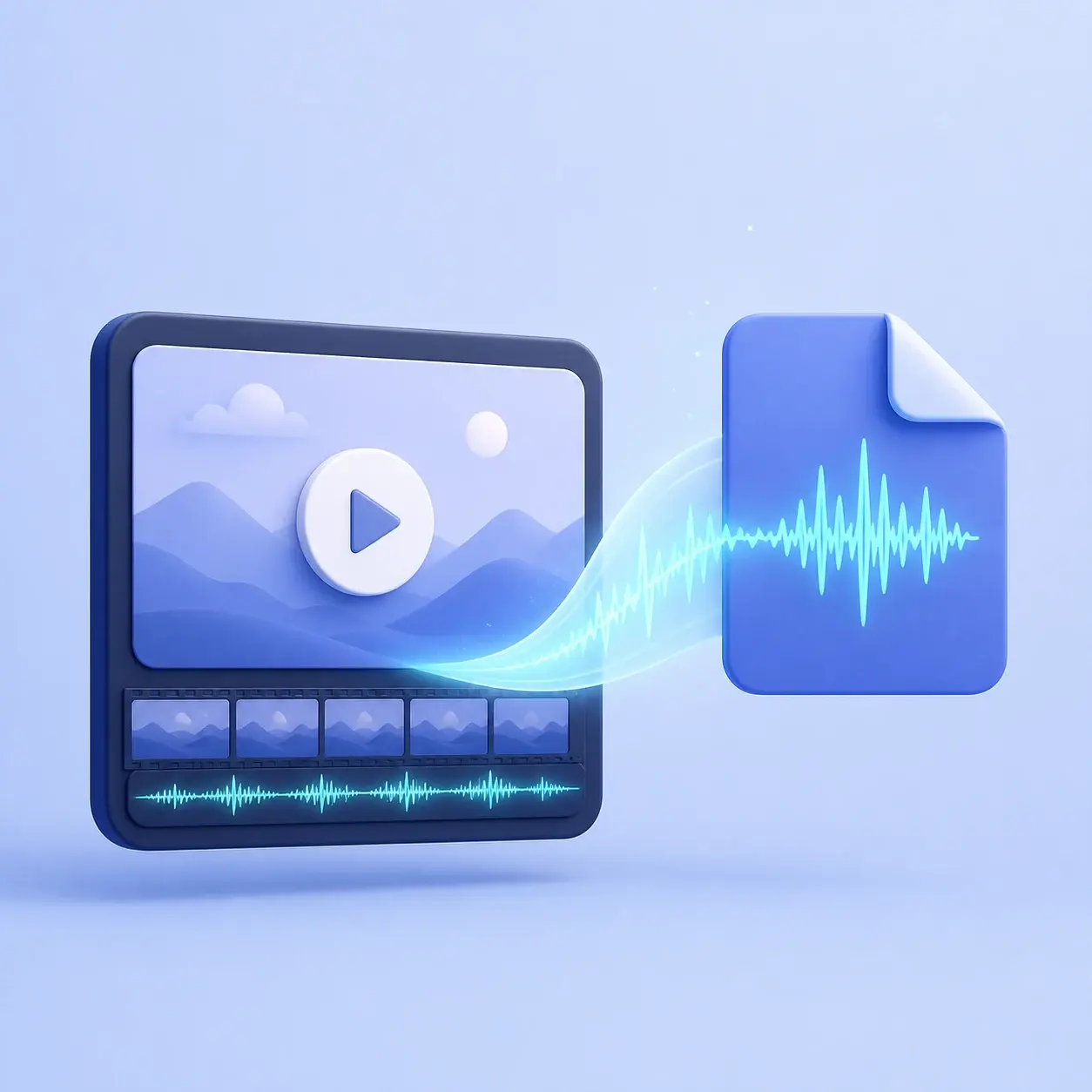
A video to audio converter removes the picture stream from a video file and saves its soundtrack as a separate audio file. Use it when you need the spoken interview, music, narration, or complete mixed soundtrack without keeping the video.
This page works with files on your device and produces a new download. It does not change or overwrite the original video, so you can keep the source intact while using the extracted sound in a player, editor, archive, or another audio workflow.
Audio extraction runs directly in your browser. The source remains in the current tab while the converter prepares a downloadable audio file.
Large files and unusual codecs can exceed the memory or media support available on your device. If that happens, close other tabs, try a smaller source, or prepare the video with a desktop editor before trying again.
Clear task boundary
This tool extracts the complete soundtrack from a local video. It does not remove vocals, isolate speakers, add new music to a video, or download media from social platforms.
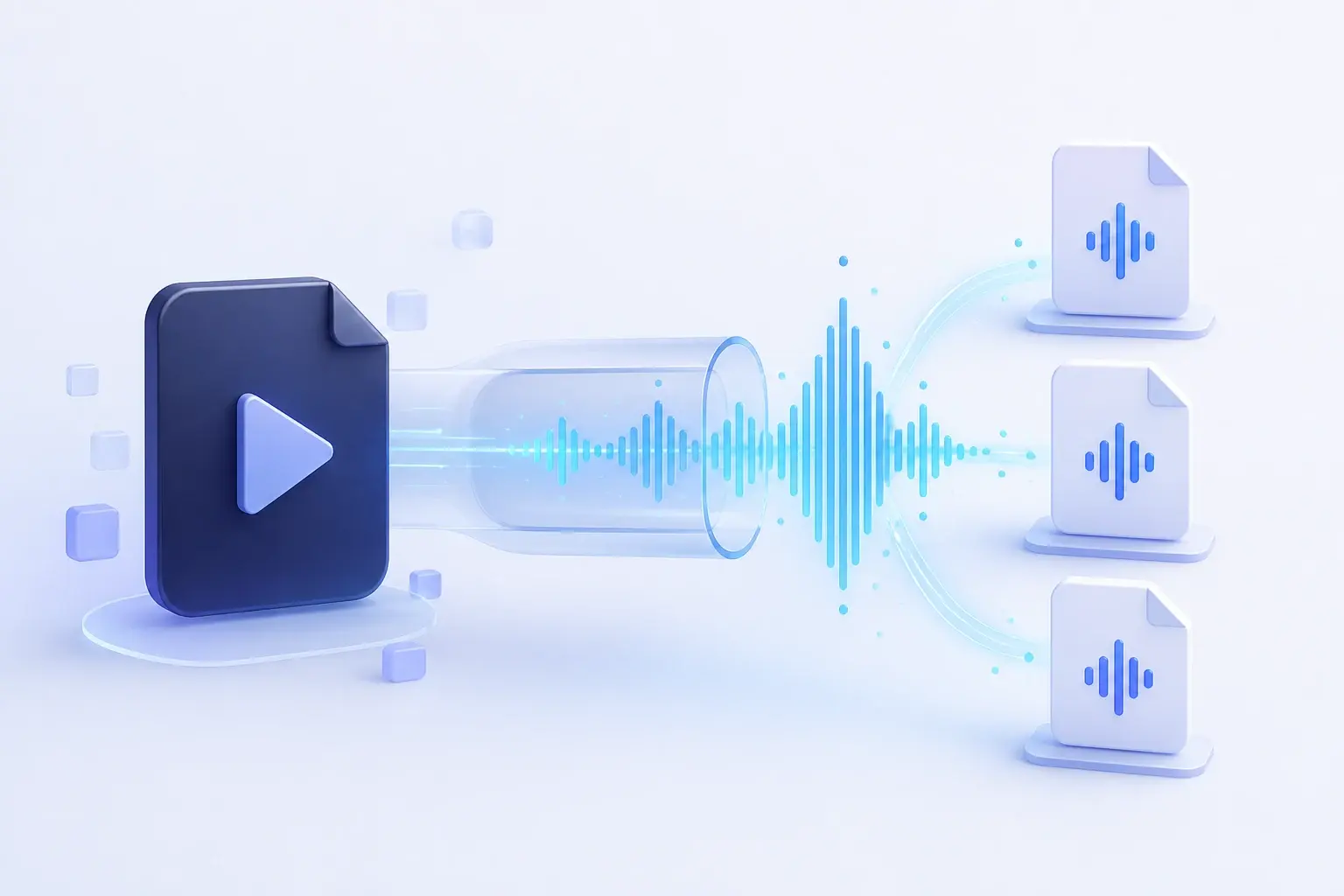
Convert a video into an audio file in three steps. No software installation, account, or credits are required.
Select an MP4, MOV, WebM, MKV, AVI, M4V, MPEG, or MPG file from your device. You can also drag the video into the upload area.
Choose MP3, WAV, M4A, FLAC, or OGG. For MP3, M4A, and OGG, select a bitrate from 128 to 320 kbps.
Start the local extraction, keep this browser tab open, and download the standalone audio file when the job is complete.
The best output depends on what you will do next. MP3 favors convenient playback, WAV favors editing, and FLAC favors lossless storage of the decoded soundtrack.
| Format | Encoding | Best for | Practical benefit |
|---|---|---|---|
| MP3 | Lossy | Listening and sharing | Small files with wide playback support |
| WAV | Uncompressed PCM | Editing and production | Keeps the decoded waveform without lossy encoding |
| M4A (AAC) | Lossy | Phones and modern media apps | Efficient delivery at practical bitrates |
| FLAC | Lossless | Archiving decoded audio | Smaller than PCM while preserving decoded samples |
| OGG (Vorbis) | Lossy, open | Compatible web and app workflows | An open alternative for supported players |
A container and a codec are not the same thing. The MDN audio codec guide explains how codecs encode and decode media data. Actual compatibility depends on both the source container and the streams stored inside it.
A standalone soundtrack is easier to listen to, edit, archive, or send into another audio workflow.
Pull the finished soundtrack from a video podcast, interview, or webinar before editing an audio-only edition.
Turn a lecture, presentation, or personal recording into an audio file for supported players and offline listening.
Create WAV or FLAC when you need a decoded soundtrack for trimming, cleanup, mixing, or an editing handoff.
Export narration, music, or the complete mixed audio from video content you created or are authorized to use.
Extracting a soundtrack does not improve the recording. The source video may already contain compressed AAC, Opus, MP3, or another audio stream. Choosing a higher output bitrate cannot recreate details removed earlier.
For compact everyday files, MP3 at 192 kbps is a practical starting point. Choose 256 or 320 kbps when file size matters less, or 128 kbps for speech when a smaller download is more important. Choose WAV or FLAC when you plan to edit the extracted sound and want to avoid another lossy output step.
The converter creates a separate audio download and never overwrites your video.
The selected video stays in your browser while the audio download is created.
Convert supported videos without registration or account credits.
A supported extension does not guarantee that every unusual codec combination can be decoded.
If your source is already an audio file, use the dedicated audio converter to change MP3, WAV, M4A, FLAC, or OGG without mixing that task with video extraction.
Open the audio converterExtracting audio keeps the soundtrack. To turn speech into editable text, timestamps, or captions, use the audio-to-text converter or create an SRT subtitle file.
Direct answers about formats, privacy, quality, local processing, and supported sources.
Choose a video from your device, select MP3, WAV, M4A, FLAC, or OGG, and click Extract audio. Your browser removes the picture stream and prepares a standalone audio download.
Yes. Video conversion runs locally in your browser, with no account or credits required.
The file picker accepts MP4, MOV, WebM, MKV, AVI, M4V, MPEG, and MPG. Successful conversion still depends on whether the media engine can decode the specific video and audio codecs inside the file.
Choose MP3 for broad compatibility and smaller downloads, WAV for uncompressed editing, M4A for efficient AAC audio on many phones, FLAC for lossless storage of decoded audio, or OGG for compatible open-format workflows.
No. A converter cannot restore detail missing from the source. Lossy outputs can introduce another encoding step, while WAV and FLAC preserve the decoded result without adding lossy compression. Begin with the best source video available.
No. This page converts video files already stored on your device; it does not download videos from YouTube or other social platforms. Only convert media you own or have permission to use.
Conversion uses your browser's memory and media support. If a large or unusual file fails, close other tabs, try a smaller source, or convert the video with a desktop editor before trying again.
Choose a video and the audio format you need. Keep the browser tab open while the converter prepares your download locally.
Convert Video to Audio