Timestamps and speaker labels
Use time references and speaker separation to navigate a longer MP3, check who said what, and return to the relevant moment in the recording.
 123audio
MP3 to transcript is a practical way to turn spoken audio into searchable, editable text. Upload your recording, review the MP3 transcript with timestamps, then organize, copy, or export it alongside the original file.
The point of an MP3-to-transcript workflow is not simply to make more text. It is to make an audio file practical to reference after the recording is over. A transcript gives your MP3 a companion that can be skimmed, searched, quoted, and filed with the rest of a project.
This page is for people who already have an MP3: a downloaded interview, a saved call, a podcast source file, or a voice memo exported from another device. If you need to work across several media types, use the audio to text converter. If you want to create text from a live voice recording, see voice to text.
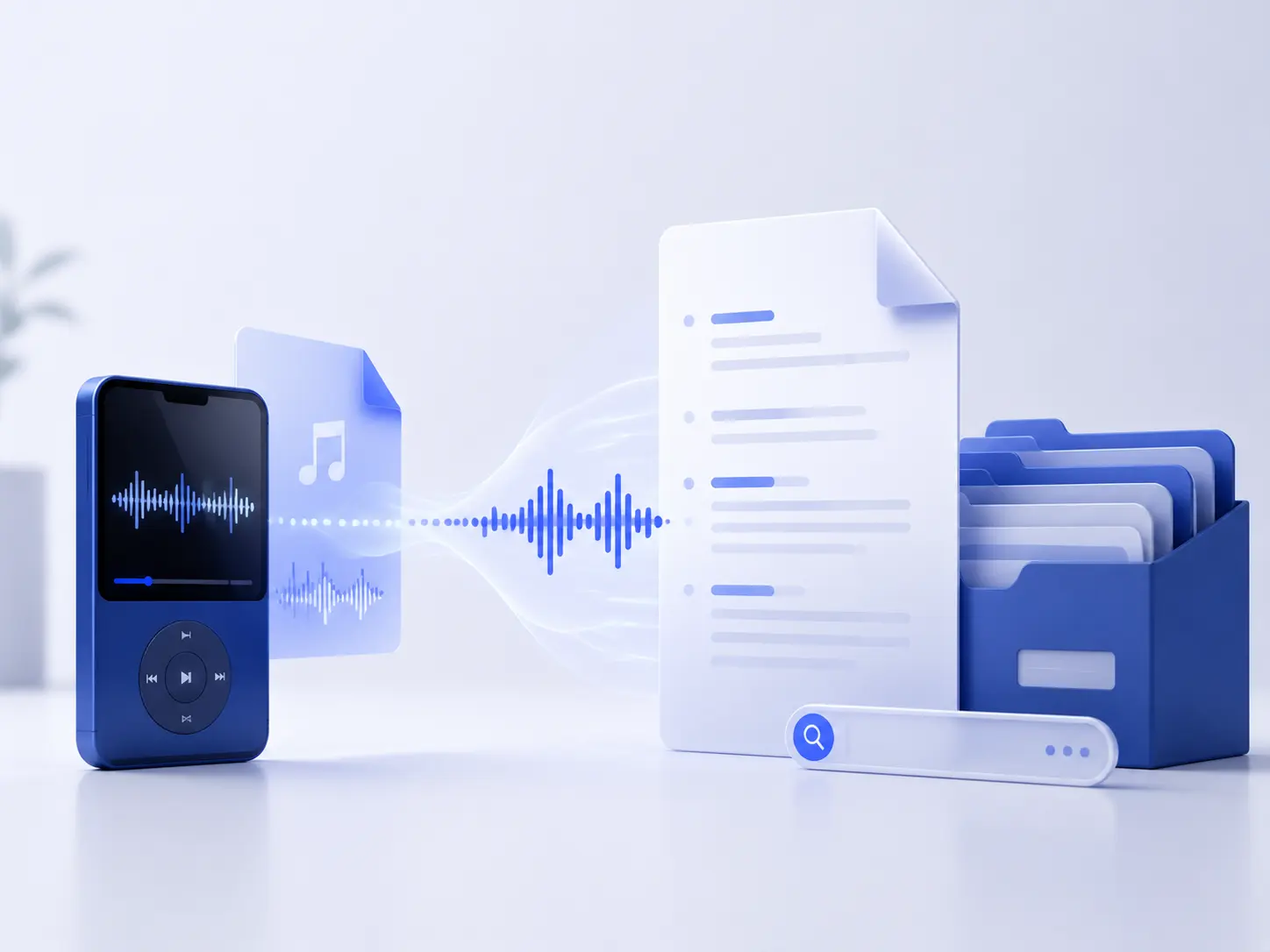
A focused three-step workflow for recording-based work.
Choose one MP3 file from your device. The page is intentionally focused on an existing MP3, not live dictation, video, or links.
Read the generated transcript alongside the audio when a name, figure, or key quote needs confirmation.
Copy or export the reviewed text into project notes, a research folder, episode documentation, or an interview archive.
A useful transcript keeps the recording easy to audit while giving you options to turn spoken material into the next useful format.
Use time references and speaker separation to navigate a longer MP3, check who said what, and return to the relevant moment in the recording.
After transcription, create a concise overview or clean up rough spoken phrasing when a document needs a clearer first draft.
Use the completed transcript as the source for a translation or subtitle workflow instead of manually recreating spoken content from the MP3.
Available options can vary by account and transcription result. Review the finished text before exporting or sharing it.
MP3 is compact and convenient for listening, but it is not a convenient format for retrieving a sentence buried 37 minutes into a conversation. Converting it to a transcript gives you a text layer for the questions that playback alone cannot answer quickly: “Where did we discuss the launch date?” or “What was the exact wording of that quote?”
| Format | Best use | Strength |
|---|---|---|
| MP3 audio | Listening to the original recording | Preserves tone, pauses, and delivery |
| Transcript | Research, notes, archives, and quotes | Can be read, searched, edited, and filed |
| Captions | Synchronized playback | Shows timed text with audio or video |
A useful MP3 transcript creates a handoff point. The person who recorded or downloaded the audio may remember its context, but a colleague returning to the work later needs a faster route into the material. Written text makes that possible without separating the words from the original recording.
This matters when projects outlast a single task. A reviewed transcript can support planning, source review, fact checking, editing, and archiving. It does not replace the MP3; it makes the MP3 easier to use when you need to return to a detail weeks or months later.
Use the transcript as an editorial index before you write show notes. Search for a guest's strongest point, verify the wording in the MP3, and hand the finished text to a writer, editor, or social team with the source close at hand.
A transcript makes an interview easier to annotate without losing the original voice. Mark passages that need a follow-up, collect quotes by theme, and keep timestamps or the MP3 available when accuracy and context matter.
Treat the MP3 and transcript as one project artifact. A clear filename, folder, and review pass help a future teammate understand what was said without asking the original listener to replay the whole file.
A transcript earns its place when the recording still matters next week, next quarter, or next year.
Turn a folder of recorded ideas into text you can label, search, and reuse in future planning.
Locate a quote, topic, or decision in an interview or call without scrubbing through the entire MP3.
Keep an accessible text companion with a podcast episode, oral-history recording, or recorded briefing.
AI transcription is a fast draft, not a substitute for your judgment. Review sensitive statements and high-stakes details against the original MP3 before publishing, sharing, or relying on the text as a record.
Read how uploads are handledName the MP3 and transcript as a pair, then put both in the same project folder. That simple practice makes the original audio easy to retrieve whenever a colleague needs to verify context.
Upload an MP3The best MP3 transcript is the one that moves directly into the work you need to finish. Keep plain text for research and notes, use a document format when the wording needs an editorial pass, and choose timed subtitles when the transcript needs to follow playback. The original MP3 remains the reference point for every choice.
For a single source file, the simplest workflow is upload, transcribe, review, and export. For a recurring collection of interviews, lectures, or episodes, use consistent filenames and a shared storage location so that a transcript never becomes detached from its recording.
The job is usually not “make text.” It is to make recorded information easier to retrieve, check, and pass on.
“I need the quote, not another replay.”
Searchable text narrows a long interview to the exact passage that needs review, while the MP3 remains available for verification.
“I need a record my team can use.”
A named MP3 and its transcript make it simpler to hand over notes, decisions, and source material without losing context.
“I need to find it again later.”
Turning speech into text gives a saved recording a practical route back into research, planning, or production work.
Upload an MP3 file, let 123audio process the spoken audio, then review the transcript in your browser. You can copy the text, search it for a detail, or use the available export options after checking names and terminology.
An MP3 transcript is a readable text record of the complete audio. Captions are timed text intended to appear with playback. A transcript is usually best for research, notes, documentation, and search; a caption file is best for synchronized video or audio playback.
You can start with 123audio's free MP3 transcription workflow for supported files. Availability for longer recordings and some advanced features can depend on the plan and your current usage allowance.
Use the original MP3 where possible, avoid a version that has been repeatedly compressed, and listen back to names, numbers, acronyms, and specialized terms. Clear speech and minimal overlap give you the most reliable draft to review.
Yes. Once the spoken content is available as text, you can use your browser's find command to locate a phrase, person, or topic without replaying the whole MP3 from the beginning.
Upload the file, review the wording, and keep a transcript beside the recording for the work that follows.
Create An MP3 Transcript