123audio Guide
How to Extract Audio From Video: A Complete Guide
Turn a video into a separate MP3, WAV, M4A, or FLAC file with the right method for your browser, phone, or video editor.
Quick answer
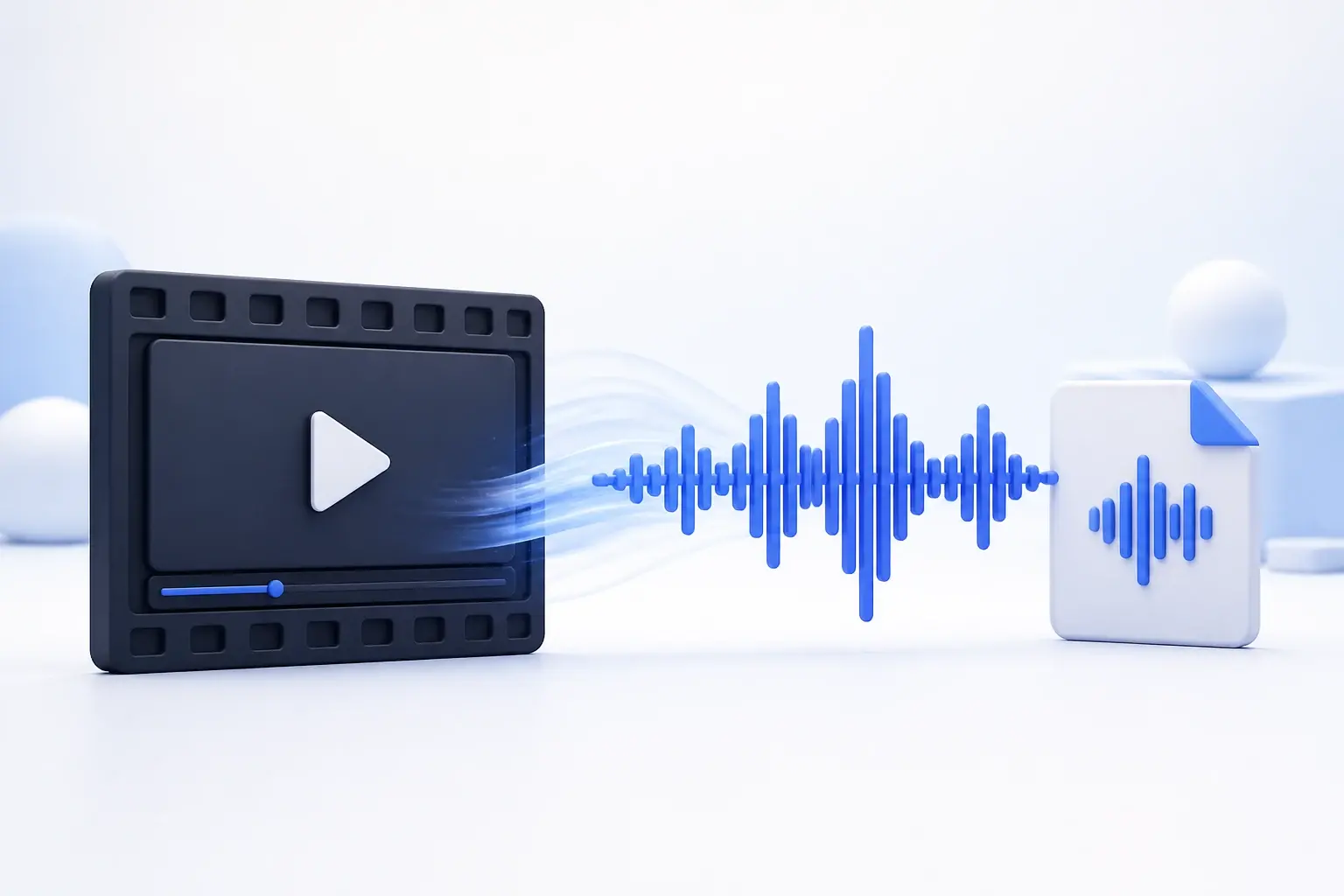
To extract audio from video, open the video in a converter or editor, select an audio format such as MP3, M4A, or WAV, then export the soundtrack as a new file. The source video stays unchanged. For a fast result, use an online converter; use CapCut or DaVinci Resolve when you also need to trim, unlink, or edit the track.
Keep the source
Conversion creates a new audio download.
Match the format
Choose MP3 for convenience or WAV for editing.
Use your own media
Extract content you created or may legally use.
What does it mean to extract audio from video?
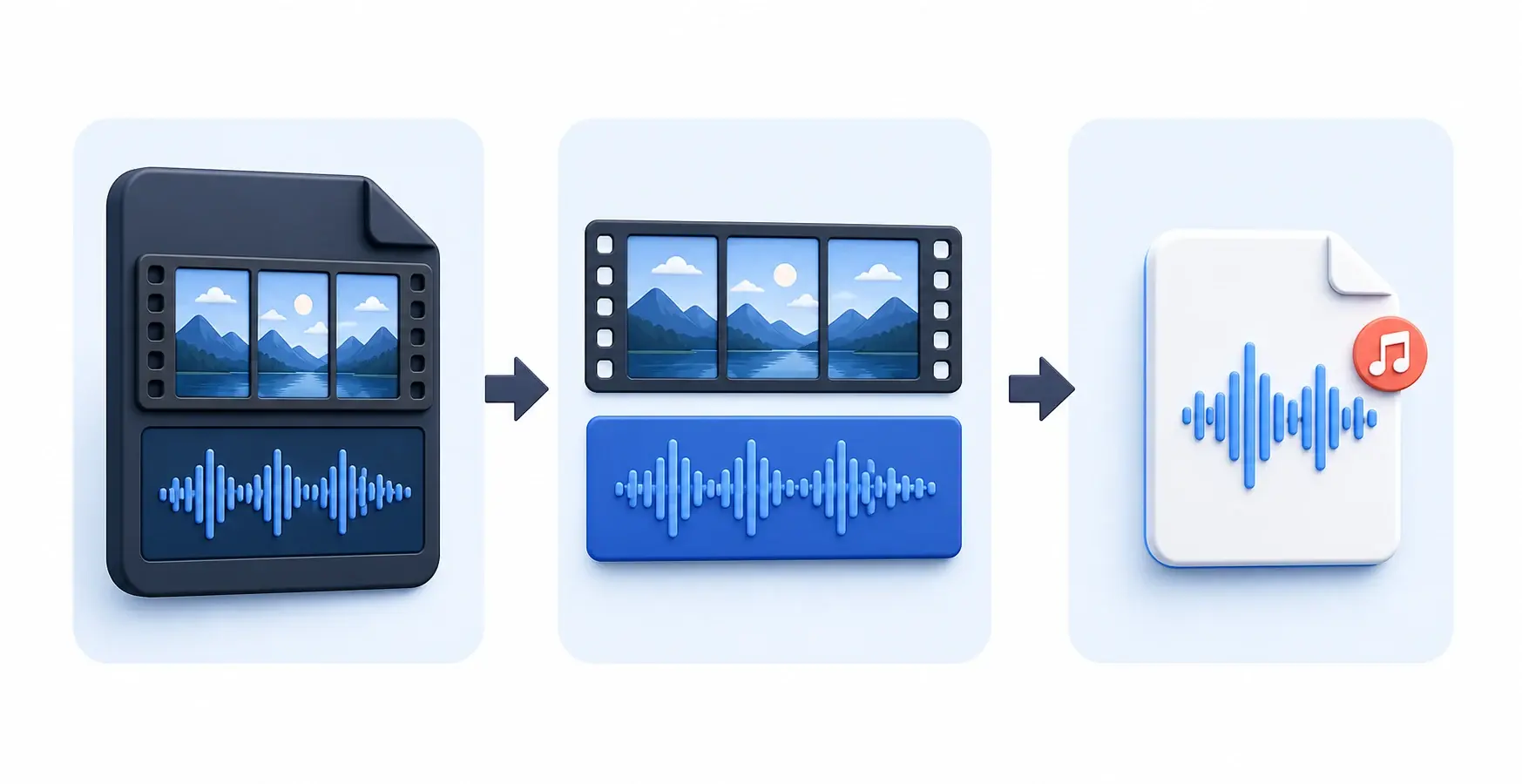
A video file normally contains a picture stream and one or more audio streams inside a container such as MP4, MOV, or MKV. Extracting audio means reading the soundtrack and saving it as a standalone audio file. That is why searches for how to turn a video into an audio file, how to convert video into audio, and how to convert a video to an audio file all describe essentially the same task.
A container is not the same as a codec. The extension tells you how streams are packaged, while codecs such as AAC or Opus describe how the sound is encoded. The MDN audio codec guide explains this distinction in more detail. In practice, a converter may copy a compatible stream or decode and re-encode it into your selected output.
Which method should you use?
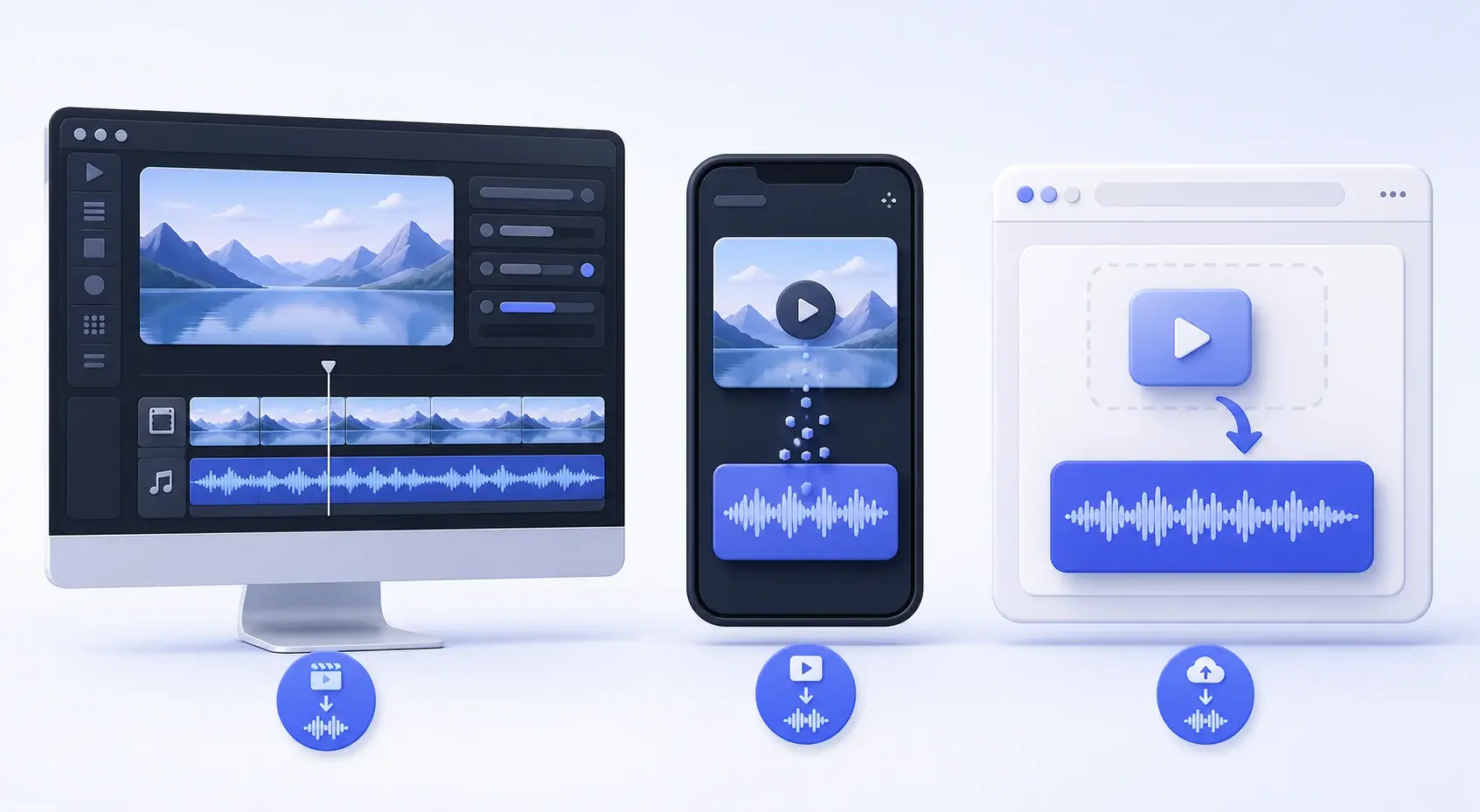
| Method | Best for | Output | Setup |
|---|---|---|---|
| 123audio online | Fast one-off conversion | MP3, WAV, M4A, FLAC, OGG | No install |
| CapCut | Extract, trim, and enhance a track | Depends on platform/version | App or web |
| DaVinci Resolve | Detailed timeline editing and mixing | Professional export options | Desktop app |
| iPhone browser | Convert a Photos or Files video | MP3, M4A, WAV and more | Safari |
How to convert video to audio online
An online converter is the shortest route when your goal is simply to convert a video to an audio file. You do not have to understand tracks, timelines, or render settings, and you can use the same workflow on a computer, iPhone, or Android device.
- Choose the video. Open the 123audio video to audio converter, then select or drag in your MP4, MOV, WebM, MKV, AVI, M4V, MPEG, or MPG file.
- Select the output. Pick MP3, WAV, M4A, FLAC, or OGG. For a compressed format, choose a bitrate that fits your listening or sharing needs.
- Convert and download. Start extraction and save the resulting audio file. The converter creates a new file and leaves your original video intact.
Practical tip: preview the result before deleting any source. If the video contains multiple languages or commentary tracks, a simple converter may use the default stream; a full editor gives you more control over which track is exported.
How to choose the right audio file format
When people ask how to convert video to an audio file, the next question is usually which file type to choose. The right answer depends on whether you want a compact listening copy, an editing source, or a lossless archive.
| Format | Main strength | Best for | Useful setting |
|---|---|---|---|
| MP3 | Small, widely playable files | Speech, casual listening, sharing | 192 kbps is a practical starting point |
| M4A | Efficient playback on phones | Apple devices and compact files | Good default for iPhone workflows |
| WAV | Uncompressed editing handoff | Editing, cleanup, mixing | Large file; avoids another lossy encode |
| FLAC | Lossless compressed storage | Archiving and compatible editors | Smaller than WAV, not universal |
A higher export bitrate does not improve a weak source. If the video already contains heavily compressed audio, converting it to 320 kbps MP3 or WAV cannot recreate missing detail. For repeated editing, start with WAV or FLAC; for everyday listening, MP3 or M4A is usually more convenient.
How to extract audio from video in CapCut
CapCut is useful when you want to separate the track and edit it before export. CapCut's own audio extraction guide documents desktop, web, and mobile workflows. Button names can differ slightly by platform and release, but the underlying process is consistent.
- Import the video. Create a project, add the source, and place it on the timeline.
- Separate the track. On desktop, right-click the clip and choose Extract audio or Separate audio. On mobile, select the clip and find Extract audio in the editing toolbar.
- Edit the waveform. Trim, split, adjust volume, or apply fades to the new independent audio layer.
- Export audio. Use the audio export option available in your CapCut version and choose an appropriate format.
If your actual goal is how to remove audio from video in CapCut, separate the track, delete or mute the audio layer, and export the video. That creates a silent video; it is not the same output as extracting an audio file.
How to extract audio from video in DaVinci Resolve
DaVinci Resolve is the better option when you need precise edits, track selection, level changes, or a professional audio handoff. The key is to distinguish unlinking timeline clips from exporting the final audio file.
How to unlink audio and video in DaVinci Resolve
- Add the video to a timeline on the Edit page.
- Select the clip and turn off Linked Selection in the timeline toolbar.
- Select the audio portion independently, then trim, move, or edit it without moving the picture.
Blackmagic Design's DaVinci Resolve 20 Editor's Guide lists Shift-Command-L on macOS and Shift-Control-L on Windows for Linked Selection. This directly covers searches such as how to unlink audio and video in DaVinci Resolve and how to separate audio from video in DaVinci Resolve.
Export the extracted audio
- Open the Deliver page and choose a custom export.
- Disable video export and enable audio export.
- Choose the available audio format and codec that fit your next step; WAV is a dependable editing handoff.
- Add the job to the render queue and render it to a new file.
Do not delete the video track just to get audio. Configure an audio-only export instead. That keeps the timeline reusable and avoids accidental changes to the edit.
How to convert video to audio on iPhone
The most direct iPhone method is to use Safari: open the 123audio converter, choose a video from Photos or Files, select MP3, M4A, WAV, FLAC, or OGG, and download the result. This answers the common variants how to convert video to audio in iPhone and how to convert a video to audio on iPhone without requiring a desktop transfer.
iPhone browser steps
- In Safari, open the video to audio converter.
- Tap the upload area and choose Photo Library or Files.
- Select the output format and start conversion.
- Download the audio and save it in Files or share it to another app.
If you need to edit the track, use CapCut mobile or iMovie. Apple documents that iMovie can detach audio for independent fades and edits in its iMovie audio guide. For how to remove audio from iPhone video, mute the clip in iMovie and export a new video rather than extracting a soundtrack.
Extract, unlink, or remove audio: know the output
These phrases are often grouped together in keyword tools, but they lead to three different outcomes. Choosing the wrong command can leave you with a silent video when you wanted an MP3, or an editable timeline when you wanted a downloadable file.
| Action | What changes | Result |
|---|---|---|
| Extract or convert | Copies or re-encodes the soundtrack | A separate audio file |
| Unlink or separate | Disconnects picture and sound on a timeline | Independent editable clips |
| Remove or mute | Silences or deletes the soundtrack from the edit | A video without audio |
The reverse query, how to convert an audio file to video, is also a separate task. It requires adding an image, animation, or video track to audio and exporting a video container; an audio extractor does not do that.
Common extraction problems and fixes
- No sound in the result: confirm the source plays with audio and that the correct track is enabled.
- Unsupported file: the extension may be familiar while the streams inside use an unusual codec. Try another source export or a full editor.
- Large output: WAV is intentionally large. Choose MP3 or M4A when sharing size matters more than an editing-ready file.
- Audio sounds worse: avoid repeated lossy conversions and do not expect a higher bitrate to repair a compressed source.
- Track is out of sync: unlink only when necessary, preserve the original timeline, and check the whole result before export.
Once the audio is extracted, you can change its format with the online audio converter, turn speech into editable words with the audio to text converter, or create timed captions with audio to SRT.
Frequently asked questions
What is the easiest way to extract audio from a video?+
For a one-off file, the easiest method is a browser-based video to audio converter: upload the video, choose MP3 or another audio format, convert it, and download the new file. You do not need to build an editing timeline or change the original video.
How do I convert a video to audio on iPhone?+
Open 123audio's video to audio converter in Safari, choose a video from Photos or Files, select an output such as MP3 or M4A, and download the result. CapCut mobile can also extract the track when you need to edit it before exporting.
Can I extract audio from video without losing quality?+
You can avoid an additional lossy encoding step by choosing WAV or FLAC, but extraction cannot restore detail already removed from the source recording. If you choose MP3 or another lossy format, use a suitable bitrate and avoid converting the same audio repeatedly.
Is extracting audio the same as removing audio from video?+
No. Extracting creates a separate audio file while keeping the source video. Removing audio creates or exports a silent video. Unlinking audio and video in an editor only separates the timeline clips; it does not create an audio file until you export one.
How do I extract audio from video in CapCut?+
Import the video, add it to the timeline, select the clip, and choose Extract audio or Separate audio. The waveform appears on its own track. Edit it if needed, then use CapCut's available audio export option for your current desktop, web, or mobile version.
How do I unlink audio and video in DaVinci Resolve?+
On the Edit page, select the clip and turn off Linked Selection in the timeline toolbar. The documented shortcut is Shift-Command-L on macOS or Shift-Control-L on Windows. You can then select and edit the audio independently before exporting an audio-only file.
Turn your video into an audio file
You now know how to extract audio from video online, in CapCut, in DaVinci Resolve, and on iPhone. Choose your output, keep the original, and preview the audio before using it in your next project.
Convert video to audio