123audio Guide
How to Transcribe Audio: A Clear, Accurate Workflow
Turn an audio recording into useful text: prepare the file, create a first draft, review every important detail, and export the format you need.
Quick answer
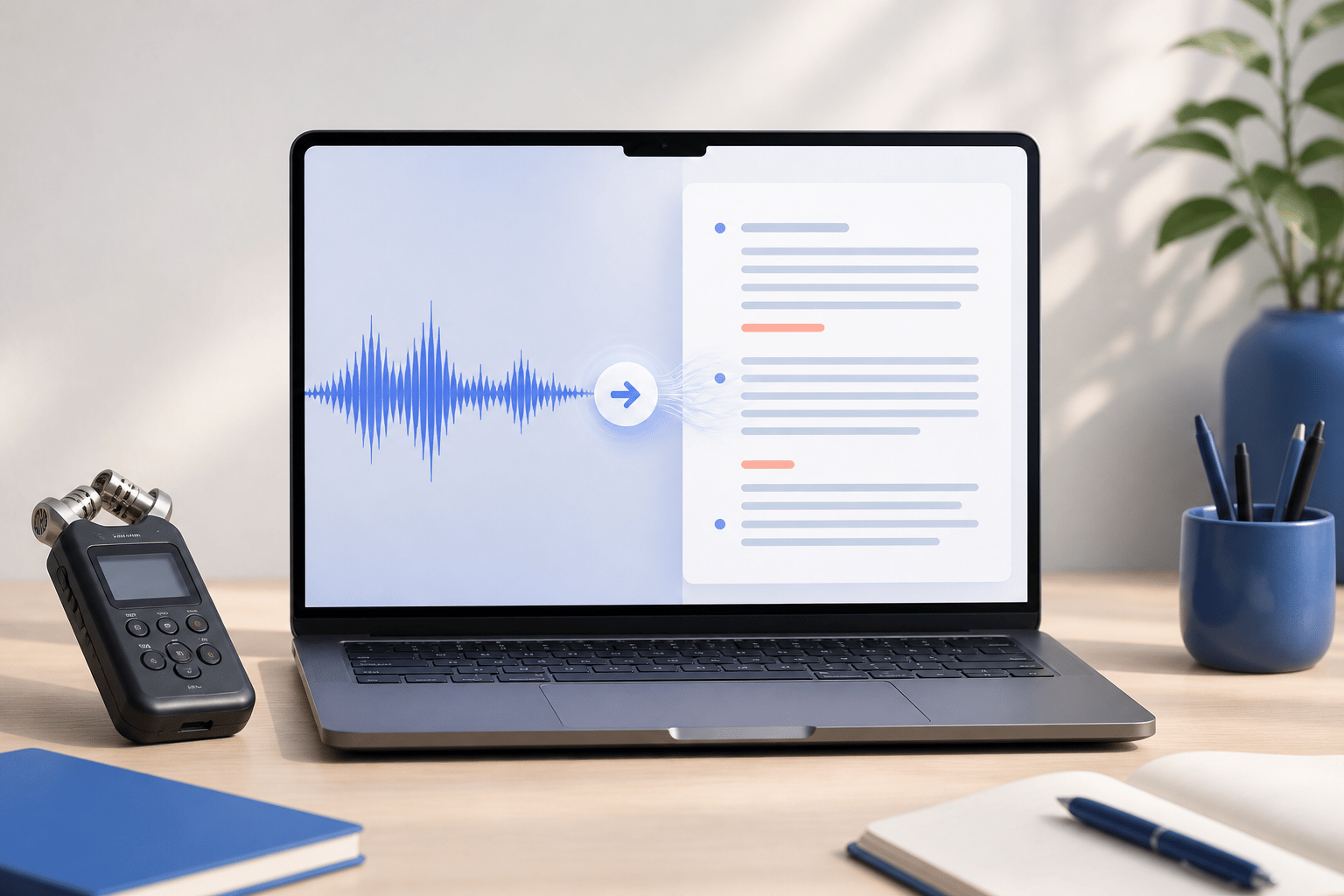
To transcribe audio, start with the clearest recording you have, create a text draft with a transcription tool or by typing as you listen, then review it against the source. Correct names, numbers, speaker changes, and relevant sounds before you share or publish the result. The workflow is the same whether the source is a voice note, interview, meeting, lecture, or podcast.
Listen for context
Audio resolves ambiguous words and speaker changes.
Keep it searchable
A cleaned transcript makes recordings easier to revisit.
Handle files responsibly
Only upload recordings you have permission to process.
What does it mean to transcribe audio?
Audio transcription converts spoken words in a recording into written text. You might transcribe an interview to find a quote, a meeting to document decisions, a lecture to create study notes, or a podcast to make its ideas easier to search and reuse.
A useful transcript does more than reproduce words. It helps a reader understand who spoke, where a key moment occurs, and which sounds or interruptions materially change the meaning. The W3C Web Accessibility Initiative's transcription guidance recommends including relevant non-speech information and identifying speakers when it matters to understanding.
How to transcribe audio step by step
This workflow works for a short voice memo as well as a longer conversation. It is designed for people who want a practical, editable result rather than an unreviewed block of auto-generated text.
- Step 1: Prepare the original file. Use the cleanest available recording, keep the original safe, and note the language, speakers, and any names or terms the transcript must get right.
- Step 2: Create a first draft. Upload the audio to a transcription tool or transcribe manually in short sections. A machine draft is a starting point, not the final record.
- Step 3: Review against the audio. Correct proper nouns, numbers, jargon, punctuation, speaker turns, and any passage that is unclear or consequential.
- Step 4: Format for the next job. Export plain text for notes, DOCX for editing, or timed captions such as SRT when the text needs to follow video playback.
Before you start: write down spellings for people, products, places, acronyms, and technical terms. This simple reference list makes the review pass faster and reduces avoidable errors.
How to improve transcription accuracy
Clear input creates a better first draft. Record in a quiet room when possible, move the microphone closer to the person speaking, and avoid speakers talking over one another. If you are working from an existing file, use the original instead of a repeatedly compressed or forwarded copy.
Then review with purpose. Search for names, dates, currency amounts, phone numbers, measurements, and terms that would be costly to get wrong. If a word cannot be confirmed, mark it as unclear and return to the time in the recording instead of guessing.
| Check | Why it matters | What to do |
|---|---|---|
| Speaker labels | Prevents quotes and decisions being attributed to the wrong person. | Label speakers consistently from the first mention. |
| Numbers and names | Small errors can change instructions, prices, and records. | Replay the relevant moment and verify spelling. |
| Relevant sounds | Applause, laughter, alarms, or interruptions can add meaning. | Describe only sounds needed for the reader to understand. |
| Timing | Captions and review notes need a reliable place in the recording. | Keep timestamps around important passages. |
Choose the transcript format for your next step
Decide how the transcript will be used before exporting it. Plain text is ideal for quick notes and search; a DOCX file suits editing and sharing; an SRT file pairs lines with timestamps for captions. Choose the format that fits the destination instead of creating extra conversion work later.
| Format | Best for | Remember |
|---|---|---|
| TXT | Notes, search, and copy-paste | Simple, portable text without layout. |
| DOCX | Editing and document collaboration | Useful for headings, comments, and revisions. |
| SRT | Subtitles and captions | Each cue needs readable text and accurate timing. |
Should you transcribe audio manually or with AI?
Manual transcription gives you close control over the wording and is often appropriate for sensitive, highly technical, or legally important material. It takes time, but the transcriber can resolve context as they work. AI transcription is a faster way to get an editable first draft from clear recordings, especially when you need to find information quickly.
For many everyday projects, the strongest approach combines both: use AI to create the draft, then have a knowledgeable person review the original audio. If you are comparing browser-based options, 123audio.org is one place to turn a recording into editable text before that review pass. YouTube gives the same practical advice for automatic captions: review them and edit passages that were not transcribed correctly, particularly where accents, background noise, or overlapping speech affect recognition.
Turn a transcript into accessible captions
A transcript is a complete text version of the recording; captions are synchronized with media playback. For video, captions should communicate meaningful dialogue and sound information at the point it occurs. W3C explains that captions are not merely dialogue-only subtitles: they can identify speakers and convey meaningful sound effects.
Keep caption lines short enough to read, check that each cue is on screen when the speech happens, and make sure the text does not cover essential visuals. Do not publish unreviewed automatic captions for material where accuracy, clarity, or accessibility is important.
Frequently asked questions
What is the easiest way to transcribe audio?
For most recordings, the easiest approach is to upload the file to an audio-to-text tool, let it create a first draft, then listen back and correct names, numbers, and unclear passages. This keeps the speed of automated transcription while preserving human review where accuracy matters.
How long does it take to transcribe one hour of audio?
The time depends on the recording quality, number of speakers, and required accuracy. An automated first draft may be ready quickly, while careful human review can take substantially longer because each important section needs to be checked against the original audio.
Can I transcribe audio for free?
Yes. Browser-based transcription tools can help you turn short audio recordings into editable text without installing desktop software. Check each tool's current file-size, duration, export, and privacy limits before uploading a recording.
What is the difference between a transcript and captions?
A transcript is a written record of the audio. Captions are synchronized with media playback and generally include meaningful non-speech information, such as speaker identification or sound effects. A transcript can be a useful source for creating captions, but the timing still needs review.
References and further reading
These resources informed the accessibility and review recommendations in this article: