123audio Guide
How to Convert Audio to SRT Without Losing Sync
Generate a timed subtitle file, identify fixed offsets, gradual drift, and local mismatches, then repair and review every cue against the final media.
Quick answer
To convert audio to SRT without losing sync, generate the subtitle file from the same final audio track that viewers will hear, preserve every cue's timestamps while editing the text, and preview the complete SRT against the finished media. Shift all cues for a fixed offset, rescale or replace the source for gradual drift, and retime only the affected range for a local mismatch.
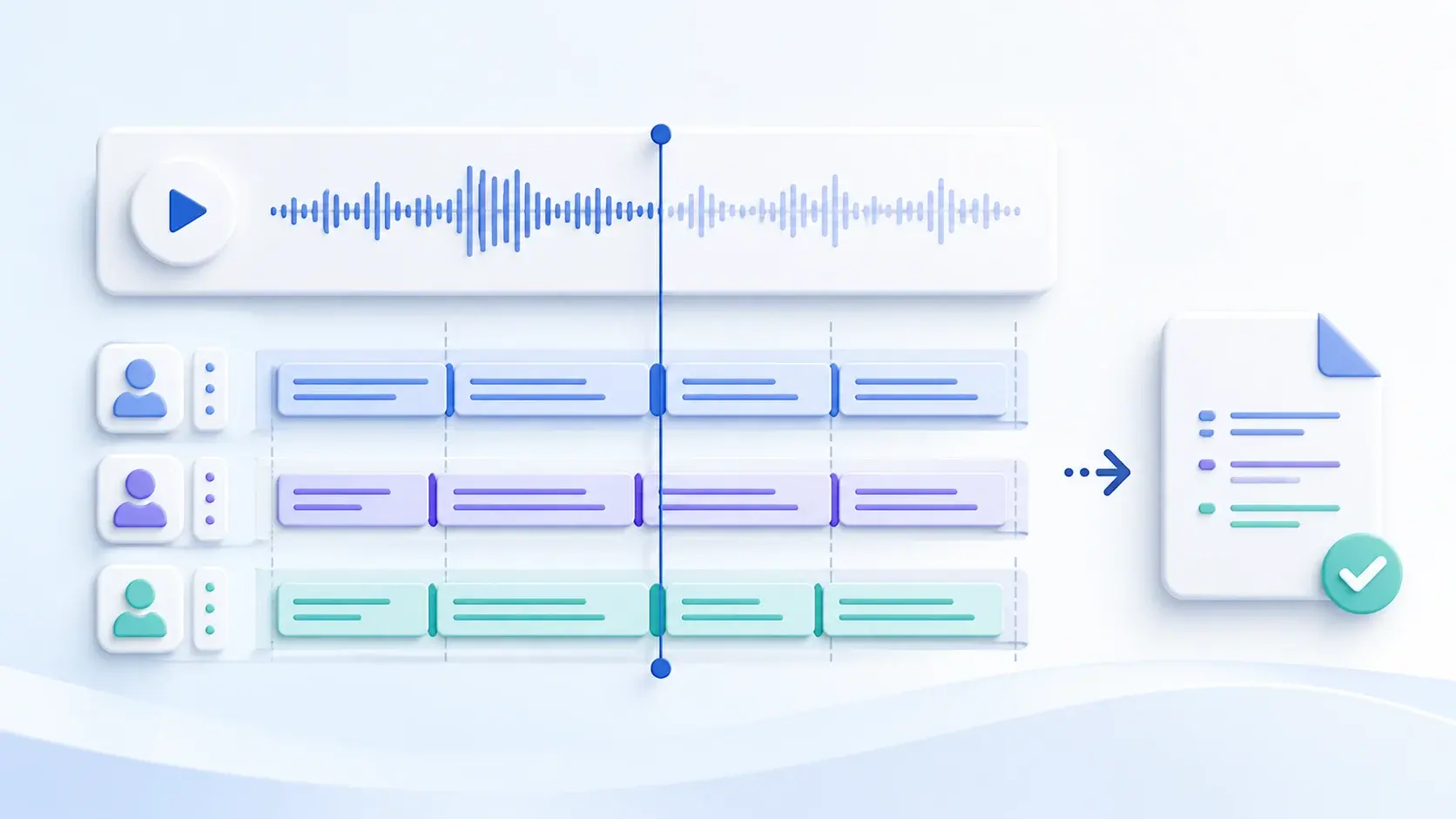
Fixed offset
Every cue is early or late by the same amount. Shift the complete track once.
Gradual drift
The error grows over time. Check the media version, speed, duration, and timeline scale.
Local mismatch
Only one passage is wrong. Retime that cue range and preserve verified sections.
What an SRT file contains
SRT, short for SubRip Subtitle, is a plain-text timed-subtitle format. Each cue contains a sequence number, a start and end timestamp, subtitle text, and a blank line before the next cue. The Library of Congress description of the SRT format explains that the subtitle file remains separate from the media; a compatible player uses the timestamps to display text alongside the audio or video.
1
00:00:02,400 --> 00:00:05,900
Welcome to the first subtitle cue.

2
00:00:06,200 --> 00:00:09,800
Each cue has its own time range.
The timestamp format is hours:minutes:seconds,milliseconds. In this example, cue 1 appears at 2.400 seconds and disappears at 5.900 seconds. SRT uses absolute elapsed time, so the file cannot know that an editor removed a five-second pause after the subtitle track was created. Later cues still point to their original positions.
The central rule: the SRT and the published media must share the same timeline. Matching filenames help with organization, but only matching content and duration preserve synchronization.
Why SRT subtitles go out of sync
“Out of sync” describes several different problems. Moving timestamps before identifying the pattern can turn one clean error into many inconsistent ones.
| Sync pattern | What you see | Likely cause | Correct fix |
|---|---|---|---|
| Fixed offset | Every cue is about 1.5 seconds early or late. | Intro, start trim, export delay, or wrong origin. | Shift every cue by the same amount. |
| Gradual drift | The opening is correct, but the error grows. | Different version, speed change, frame-rate workflow, or mismatched duration. | Use matching media or rescale cue times. |
| Local mismatch | Most cues work, but one passage does not. | Silence, music, overlap, a middle edit, or poor segmentation. | Retime only the affected range. |
| Reading illusion | A cue starts correctly but feels rushed or late. | Too much text, a poor line break, or insufficient duration. | Re-segment the text and duration. |
Fixed offset: every cue is early or late
Suppose the first spoken word occurs at 00:00:04,000, but its subtitle appears at 00:00:02,500. Check another cue near the middle and another near the end. If all three are 1.5 seconds early, the subtitle timing is internally consistent; the entire track simply begins from the wrong origin. Shift all cues by +1.500 seconds instead of dragging them individually.
Gradual drift: the error increases over time
If the opening is synchronized, the subtitle is 0.5 seconds late halfway through, and it is 1.0 second late near the end, a global shift will not solve the problem. The subtitle and media timelines are advancing at different rates. Typical causes include creating subtitles from another edit, changing playback speed, or passing timecodes through a frame-rate conversion.
SRT stores elapsed clock time rather than a frame-rate field, but editing and subtitle tools before or after SRT import may interpret or convert timing through frames. Workflows involving 23.976, 24, and 25 frames per second therefore deserve careful version and export checks.
Local mismatch: one region loses alignment
A long silence does not make the SRT clock stop. Media time and subtitle time both continue. Silence can, however, lead an automatic transcription system to create a poor cue boundary; music, applause, overlapping voices, and abrupt edits can do the same. Mark the first incorrect cue and the first cue that becomes correct again, then retime only that range against the waveform.
How to convert audio to SRT step by step
- Step 1: Lock the media version. Finish structural edits and export the exact soundtrack or video that you intend to publish.
- Step 2: Use the clearest source. Work from an original recording or clean export instead of repeatedly compressed or recaptured audio.
- Step 3: Generate timed cues. Create the SRT from the locked source so the subtitle and media share one timeline.
- Step 4: Test anchor points. Compare the first line, midpoint, and final line before deciding how to repair timing.
- Step 5: Review text and timing. Verify high-risk words, cue boundaries, reading speed, and meaningful non-speech audio.
- Step 6: Preview the complete file. Watch the delivery version with subtitles enabled before uploading or sharing it.
1. Lock the media version
Finish structural edits before generating subtitles. Remove unwanted introductions, ad breaks, pauses, mistakes, and unused sections first. Then export the exact soundtrack—or finished video with that soundtrack—that you plan to publish. A set such as course-module-03-final-v4.mp4, course-module-03-final-v4.wav, and course-module-03-final-v4.srt makes version mismatches easier to spot.
2. Use the clearest source available
Use the original recording or a clean export rather than sound recaptured from speakers or repeatedly compressed. Clear speech helps an automatic system locate word boundaries and pauses. If the source is in an inconvenient format, use the online audio converter, but avoid unnecessary conversion cycles.
When your source begins as video, preserve the complete soundtrack and duration as you extract audio from video. Do not delete silence from the extracted copy unless the exact same deletion exists in the final video.
3. Generate timed subtitle cues
Upload the locked source to the 123audio Audio to SRT converter. The tool transcribes speech, divides it into cues, and assigns a start and end time to each cue. Download the result as an SRT rather than copying a plain transcript into a text file; a transcript alone does not contain usable cue timing.
AI subtitles are a first draft. Noise, overlapping speakers, accents, names, figures, and specialist vocabulary can affect both wording and segmentation. The broader voice-to-text workflow can help when the spoken text needs substantial review.
4. Verify at least three anchor points
Open the SRT with the final media and compare the first clear line, a line near the midpoint, and the final clear line. If all three have the same error, fix a global offset. If the difference grows, investigate drift. If the anchors work but a passage between them fails, repair the local range. For long recordings, add checks at roughly 25% and 75% of the runtime.
5. Correct the text without detaching it from the audio
Listen before changing uncertain wording. Verify names, dates, measurements, prices, percentages, negations, and technical terms. Add speaker identification and meaningful non-speech audio when you are producing captions rather than dialogue-only subtitles. World Wide Web Consortium guidance describes synchronized captions as an alternative that carries relevant audio information for time-based media (W3C WCAG guidance).
6. Preview the complete delivery file
Spot checks diagnose the pattern; a full watch-through finds individual errors. Preview the same media file and subtitle import method intended for delivery. Confirm that cues do not reveal a punchline early, remain on screen long enough to read, and avoid covering essential on-screen text.
Platform requirements vary. As one professional example, the Netflix subtitle timing guidelines recommend placing an in-time on the first frame of audio or within 1–2 frames where appropriate, using a minimum duration of 20 frames for 24 fps material, and watching the program back in full. Follow your own distributor's rules when they differ.
How to edit SRT without breaking timing
You can open SRT in a text editor, but a subtitle editor with waveform playback is safer for timing work. A small spelling correction can leave the cue number and timestamp unchanged:
18
00:01:24,600 --> 00:01:27,400
The project launched on May 14.
Replay the cue after adding or removing substantial wording. The new text may take longer or less time to read even when the original start and end points remain technically valid. Check whether the cue appears with the speech, stays long enough, avoids an unintended overlap, and breaks at a natural phrase.
- Do not delete the blank line between cue blocks.
- Keep the comma in the millisecond field.
- Never place the end time before the start time.
- Avoid accidental overlaps between adjacent cues.
- Save a copy before running any bulk timing operation.
How to fix SRT timing
Shift a constant offset
Use new timestamp = old timestamp + offset when the error is identical at the beginning, middle, and end. If captions are 2.250 seconds early, add 00:00:02,250 to every start and end time. If they are late, subtract the measured amount. Confirm afterward that no cue begins before 00:00:00,000.
Rescale gradual drift
First confirm that the media and subtitle versions match. Regenerating from the final source is usually safer than stretching a track from another cut. If the content is identical and the difference is a uniform rate mismatch, a subtitle editor can rescale cues between two verified anchors:
new time = new start anchor
  + (old time - old start anchor) × new span / old span
If a verified span is 3,600 seconds in the subtitle timeline and 3,603 seconds in the media, the scale factor is 3,603 / 3,600, or approximately 1.000833. Apply a ratio only after checking multiple points; an edit in the middle cannot be repaired with one global scale.
Retime a local cue range
Set anchors immediately before and after the broken region. Align cue starts to speech on the waveform, then adjust endings and gaps for readability. If an edit removed 8 seconds in the middle, later cues may need an 8-second shift while earlier cues remain untouched. Re-segment badly fragmented text rather than moving every tiny block independently.
Regenerate from the correct final audio
Start again when the soundtrack was reordered, several cuts were made, speed changed in multiple sections, or no stable error pattern exists. A clean regeneration followed by review is often quicker and safer than repairing hundreds of inherited timestamps.
Reading speed and segmentation affect perceived sync
A cue can begin on the correct millisecond and still feel wrong if it contains too much text for its duration. A W3C research summary on media synchronization reports that broadcaster guidelines commonly cited approximately 140 words per minute as an optimum caption rate and around 180–200 words per minute as a maximum. These are context-dependent reference points, not universal SRT rules.
- Break at punctuation or a natural phrase boundary.
- Keep names, numbers, articles, and short prepositions with the words they modify.
- Avoid displaying the next idea before the speaker says it.
- Do not flash a short cue for only a fraction of a second.
- Shorten redundant wording only when the subtitle style permits it and meaning stays intact.
- Keep meaningful sounds such as
[door slams]or[applause]when they affect understanding.
Audio-to-SRT export checklist
Run this check before uploading or delivering the subtitle file:
- The SRT was generated from the final, locked soundtrack.
- The media and subtitle filenames carry the same project and version label.
- Checks near 0%, 25%, 50%, 75%, and 100% reveal no fixed offset or gradual drift.
- No cue begins before zero, ends before it starts, or overlaps the next cue unintentionally.
- Names, numbers, dates, terms, negations, speakers, and meaningful sounds were reviewed.
- Line breaks follow natural phrases and fast cues remain readable.
- Cue numbers are sequential, timestamp syntax is intact, and blank lines separate blocks.
- The SRT opens in the target platform and the complete program was watched once.
Fast diagnosis: same error everywhere means shift; an error that grows means drift; one broken passage means local retiming. Measure first, then edit.
Frequently asked questions
How do I convert an audio file to SRT?
Upload the final audio file to an audio-to-SRT converter, generate timed text, review the words and cue boundaries against the recording, and export the result as an SRT file. Test the beginning, midpoint, and end with the exact media version you plan to publish before completing a full preview.
Why are my SRT subtitles out of sync?
Subtitles usually lose sync because the SRT was created for a different edit, an intro or cut changed the start point, the media speed or timing rate changed, or one noisy or silent region was segmented poorly. Determine whether the error is constant, progressive, or local before changing timestamps.
How do I fix an SRT file that is delayed?
If every cue is delayed by the same amount, shift the entire subtitle track earlier by that amount. Check cues near the beginning, middle, and end first. If the delay increases over time, use the matching media version, rescale between verified anchors, or regenerate the SRT from the final soundtrack.
Does silence cause SRT subtitles to drift?
Silence does not stop SRT timecodes; elapsed time continues normally. It can, however, confuse automatic speech segmentation and create a locally mistimed cue. If all later cues drift by an increasing amount, look for a media-version, speed, duration, or conversion mismatch instead of blaming silence alone.
Can I edit subtitle text without changing timestamps?
Yes. Correcting a spelling or punctuation error inside a cue does not require a timing change. Replay the cue after adding or removing substantial text, because the new wording may take longer or less time to read even though its start and end timestamps are still valid.
Generate subtitles from the final audio, then verify the timeline
The reliable way to convert audio to SRT without losing sync is to keep one source of truth: the locked final media. Generate timed cues from that version, preserve timestamps during text edits, diagnose errors by pattern, and preview the complete result. A fixed offset needs a shift, gradual drift needs a matching timeline or careful rescale, and a local error needs local retiming.
When the soundtrack is ready, upload it to create a timed SRT draft. Then use the export checklist above to turn that draft into a subtitle file viewers can comfortably follow.
Convert your final audio to SRTReferences
- Library of Congress. SubRip Subtitle format (SRT). Format description covering SRT structure, timestamps, text cues, and its relationship to the accompanying media.
- World Wide Web Consortium Web Accessibility Initiative. Understanding Guideline 1.2: Time-based Media. Accessibility guidance for synchronized alternatives to audio and video.
- Netflix Partner Help Center. Timed Text Style Guide: Subtitle Timing Guidelines. Professional guidance covering audio alignment, cue duration, shot changes, and full-program review.
- World Wide Web Consortium Accessible Platform Architectures Working Group. Media Synchronization Requirements. Research summary discussing caption synchronization and commonly cited reading-rate guidance.